One click to know it’s real.
No uploads, no phone calls, no trust required. This is the technical deep-dive into how a TrustDID verification actually works.
You’ve received a document with a .vrfy sidecar.
Verification runs entirely on your computer—the document never leaves your machine.
In under a second, TrustDID answers two independent questions: is the document genuine,
and does anyone you trust vouch for the signer?
How to Verify
-
Receive the document + sidecar
You get two files: the original document and its
.vrfycompanion. They can arrive by email, file share, download—any channel. -
Right-click and verify
Right-click the document in Windows Explorer and select Verify with TrustDID. The verification engine runs locally. It fetches only the signer’s public DID from their website—nothing else is sent over the network.
-
Read the results
In under a second, you see two clear answers: whether the document is genuine—who signed it, when, and that not a byte has changed—and whether a registry you trust vouches for the signer.
Every Verification Answers Two Questions
There is no single trust score to chase. Every TrustDID verification returns two independent answers—one comes from mathematics, the other from people.
“The math tells you it’s genuine — people tell you whether to trust it.”
Is it genuine?
An objective, mathematical answer—identical for every verifier on Earth. The hashes and signatures either check out or they don’t.
Who vouches for it?
A relative answer—it depends on whom you trust. Your verifier consults the trust registries you have configured and reports whether any of them vouches for the signer.
Alongside the two answers, the verifier reports how strongly the signing key is bound to the signer’s domain. DECLARED means the key appears only in the signer’s own DID document. CORROBORATED means DNS URI and TLSA records published under the signer’s domain independently confirm the key. And when that DNS corroboration is itself DNSSEC-validated, the binding is anchored in the domain’s cryptographically signed DNS chain—the strongest form of the concept.
A document can be perfectly authentic and entirely untrusted—a real signature from a signer nobody you trust vouches for. That is a normal, honest outcome, not a low score.
What TrustDID Checks
The checks don’t add up to a single score. Each one serves one of the two questions.
.vrfy sidecar_did URI and TLSA records under the signer’s domain confirm the signing key—raising binding strength to CORROBORATEDkeyHistory plus a trusted timestamp prove the key was active when the signature was madeWays to Verify
TrustDID offers multiple verification paths—choose the one that fits your workflow.
Windows Shell Extension
Right-click any file in Explorer to verify. Self-contained binary with zero runtime dependencies.
Browser Plugin
Automatically detects .vrfy sidecars for loaded web pages. Local hash verification via Web Crypto API.
Cloud API
REST API at trustdid.ca for enterprise integrations, automated pipelines, and third-party services.
Verification is local. The only network request is fetching the signer’s public DID from their website—a small JSON file containing public keys. Your document never leaves your computer. No cloud uploads. No third-party servers. Complete sovereignty.
What You See
Here is real output from the free trustdid-verify command-line verifier.
Two answers, clearly separated:
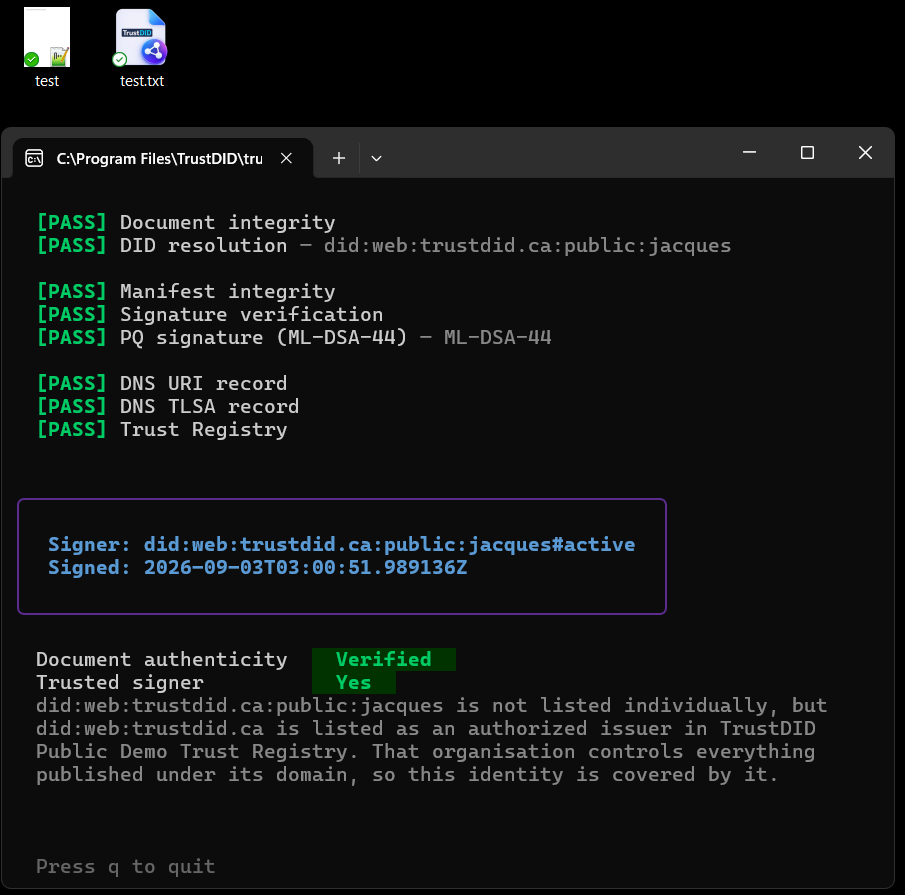
TrustDID Document Verification
==============================
  Signer:    did:web:acme.ca#active
  Timestamp: 2026-08-12T14:03:22Z

  Document authenticity   Verified
  Trusted signer          Yes
    Authentic and trusted
And here is an equally normal result—an authentic document from a signer none of your registries vouches for:
  Document authenticity   Verified
  Trusted signer          No
    Signer not in your registries
The math checks out—the document is genuine and untampered. But no registry
you consult vouches for the signer. That’s information, not an error: trustdid-verify
exits successfully; only a failed authenticity check returns an error code.
If authenticity fails—the hash doesn’t match, or a signature doesn’t validate—the result turns red with a clear explanation of what went wrong and what it means.
How a Verifier Chooses Whom to Trust
The trust answer is only as good as the registries behind it—and you decide which registries your verifier consults:
trustdid-setup --add-trusted-registry did:web:acme-bar.trust-registry.trustdid.ca
trustdid-setup --list-trusted-registries
trustdid-setup --remove-trusted-registry DID
After you add a registry, trustdid-check re-validates every configured
registry—resolving its DID, probing its
TRQP v2.0
endpoint, and reporting whether it is public, private, or token-protected. Learn more about how registries
work on the trust registries page.
Signers may advertise an affiliation in their own DID
document (trustdid-setup --add-trust-registry). Your verifier treats that as a claim by the
signer—it carries no trust weight by itself. “Trusted signer: Yes” comes only from a
registry you chose to consult vouching for the signer.
Verifying Old Signatures
Keys rotate. People change roles. But a document signed last year should still verify today. TrustDID handles this with time-aware key resolution.
- Every .vrfy sidecar records the signing timestamp and the key ID used
- When verifying, TrustDID checks the signer’s
keyHistoryin their DID document - It finds the key that was active at the time of signing (created ≤ timestamp < deactivated)
- The signature is validated against that key—not the current one
- Every rotation is also appended to
did.json.vrfy.log—a tamper-evident, hash-chained log whose entries are dual-signed (Ed25519 + ML-DSA-44)
A contract signed in 2026 with a key that was
rotated in 2027 will still verify in 2030. The key history is the audit trail—and
trustdid-verify --verify-history checks the whole chain.
Offline & Resilient
What if the signer’s website is down when you try to verify?
- First verification: the signer’s DID document is fetched and cached at
~/.trustdid/did.json - Server down? TrustDID uses the cached copy and warns you it couldn’t reach the live version
- Cache validation: the cached DID’s
idfield must match the expected DID—prevents stale or wrong files - Result: verification still succeeds with a warning, rather than failing completely
Self-Sovereign DNSSEC
Traditional DNSSEC depends on a chain of trust rooted at
ICANN.
TrustDID goes further: the signer’s DID document can embed a dnsSecAnchor—a
self-sovereign trust anchor that pins the domain’s DNSSEC key directly.
Standard DNSSEC verifies against ICANN’s root. Self-sovereign DNSSEC verifies against the signer’s own anchor embedded in their DID. This means DNS verification works even if root signing infrastructure is compromised—the trust chain starts at the domain owner, not a global authority.
Built-In Attack Protections
The verification engine includes hardened protections against known attack vectors—all enforced automatically, no configuration required.
Mandatory Dual Proof
A .vrfy file without a manifest proof is rejected immediately. This prevents downgrade attacks that strip the protective second signature.
Envelope Binding
The manifest signature covers all envelope fields (version, type, DID)—not just the payload. Attackers cannot silently swap metadata without breaking the signature.
Cross-DID Protection
The verification method in both proofs must match, and the DID prefix must be consistent. Prevents transplanting a valid signature from one identity to another.
Role Enforcement
The signing key must be listed in the DID’s
assertionMethod role—not just any key in the document. This ensures only authorized
signing keys are accepted.
Browser Plugins — Verify on the Web
Our free browser plugins for Firefox, Chrome, and Edge let you verify signed documents directly on the web—no downloads, no extra software.
What you see
Blue icon — a
.vrfy sidecar exists for this page. Click to verify.
Green icon — signature valid, identity confirmed, document integrity OK.
How it works
- You visit a page with signed content (PDF, HTML, any file)
- The plugin checks for a
.vrfysidecar at the same URL—icon turns blue - Click the icon to run full verification—DID resolution, signature check, trust registry
- Icon turns green—signature valid, identity confirmed, integrity verified